![podaris_logo_png.png]](https://support.podaris.com/hs-fs/hubfs/podaris_logo_png.png?height=50&name=podaris_logo_png.png)
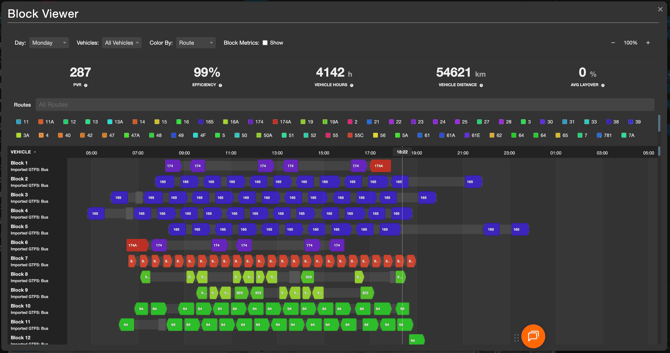
What is the Block Viewer?
Note: The Block Viewer is not a dedicated scheduling tool replacement and is a read-only visualisation. It reflects the blocks and depot assignments that Podaris has calculated from your current schedules, and will update automatically when your trips change.
Opening the Block Viewer
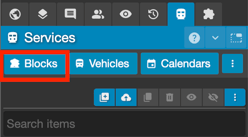
- From the Services Panel: click Blocks to open a network-wide view of all active routes.
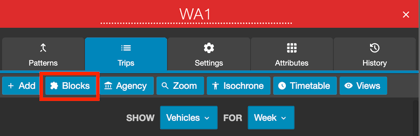
- From a route's Trips tab: click Blocks to open filtered to that route only.
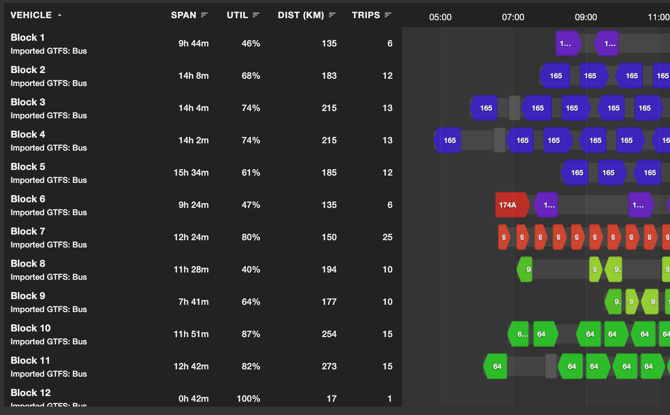
What the Gantt chart shows
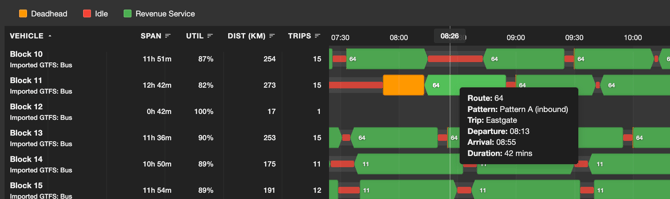
| Segment type | What it means |
| Revenue service | The vehicle is carrying passengers on a scheduled trip |
| Layover | Scheduled waiting time at the end of a trip before the next one departs |
|
Deadhead
|
The vehicle is travelling between trips without passengers |
| Pull-out | The vehicle is leaving the depot at the start of its day |
| Pull-in | The vehicle is returning to the depot at the end of its day |
| Idle | The vehicle is stationary and not in revenue service |
Filters and display options
Day
Color by
- Route: each revenue segment is coloured by its route colour, making it easy to see how trips from different routes chain together within a block
- Trip status: colours reflect the segment type (revenue, deadhead, layover, etc.) regardless of route, giving a quick read on how much time is spent in each mode
Vehicles filter
Routes filter
Depots filter
Block Metrics
| Metric | What it shows |
| Pull-out | The time the vehicle first leaves the depot |
| Pull-in | The time the vehicle returns to the depot |
| Span | Total time from pull-out to pull-in |
| Revenue hours | Time spent in active passenger service |
| Total layover | Cumulative layover time across the block |
| Utilisation | Revenue hours as a proportion of total span |
| Distance | Estimated total distance travelled (km) |
| Trips | Number of individual trips in the block |
Network-level statistics
- PVR: Peak Vehicle Requirement: the maximum number of vehicles operating simultaneously at any point in the day
- Efficiency: the proportion of total distance driven that is revenue-generating (i.e. carrying passengers), versus deadhead or depot movements
- Vehicle Hours: the combined total time all vehicles are active, from pull-out to pull-in
- Vehicle Distance: the total distance driven by all vehicles across the day
- Avg Layover: the average proportion of each block's span that is scheduled layover time
Navigation
Exporting block data
To export the blocks you're viewing, click the CSV button (file-download icon) in the toolbar. Podaris downloads a CSV named after your project and day, e.g. My Transit Project - Monday (blocks).csv.
The export gives you one row per vehicle block, with each block's ID, vehicle, depot, pull-out/pull-in, service window, and revenue, layover, idle and deadhead time and distance, plus its trip count.
Note: Only the blocks currently visible are exported, so any vehicle, route, or depot filters are respected. Network-level figures (PVR, Efficiency, etc.) aren't included.
Things to keep in mind
- Blocks are a planning-stage estimate. The simulator does not account for driver duties or labour rules.
- If a route has conflicting depot rules (e.g. rules set at different levels that cannot all be satisfied by a single depot), a warning banner will appear at the top of the chart. This indicates that some blocks may have been routed to an unintended depot, and efficiency metrics for those blocks may be incomplete. Check the Alert Manager for more info.
- The block simulation may not be 100% accurate as it uses a simplified algorithm for depot and block assignments. Use the block viewer as reference only.