![podaris_logo_png.png]](https://support.podaris.com/hs-fs/hubfs/podaris_logo_png.png?height=50&name=podaris_logo_png.png)
If your organisation is moving to Microsoft or Google Single Sign-On (SSO) for Podaris, you'll need to link your existing Podaris account to your Microsoft or Google account before the switchover date. This is a one-time process and takes just a few minutes.
Before you start
Make sure you have access to both your current Podaris password and your organisation's Microsoft or Google account. If you've forgotten your Podaris password, please refer to the relevant section on the knowledgebase here.
Steps to link your SSO account
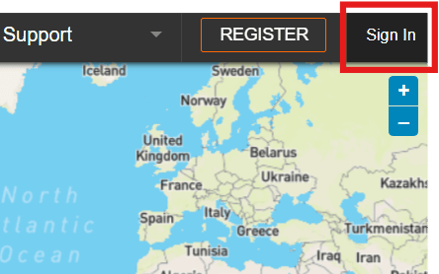
- Sign into Podaris. Go to your organisation's Podaris instance and click the Sign In button in the top right-hand corner. Enter your email address and password as normal.
- Go to account settings. Once signed in, open your account menu (your name and avatar, in the top right-hand corner) and select User Settings.Then click Account Settings.
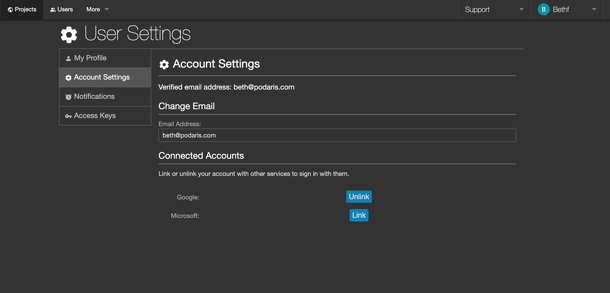
- In Account Settings, find the Connected Accounts section. Click the Link button for either Microsoft or Google accounts . You'll be redirected to Microsoft or Google's sign-in page. Sign in with your organisation's Microsoft or Google account if prompted. Once completed, you'll be returned to Podaris and will see a confirmation that your accounts are linked.
- Test it out. Sign out of Podaris. On the sign-in screen, click Sign in with Microsoft/Sign in with Google and authenticate with your SSO credentials. If you land back in your Podaris account successfully, you're all set!
From the switchover date, you'll sign in using Sign in with Microsoft/Google every time. Password-based login will no longer be available after that point.
If you run into any issues, contact our support email or live chat!