![podaris_logo_png.png]](https://support.podaris.com/hs-fs/hubfs/podaris_logo_png.png?height=50&name=podaris_logo_png.png)

Using the Pattern Inspector
The Pattern Inspector is useful both for:
-
Exploring your network - to understand which service patterns use a segment
-
Bulk edits - so you don't have to fix the same routing issue repeatedly across multiple services and service patterns. This is especially useful when cleaning up imported networks, handling diversion, or responding to road closures
What Problem Does the Pattern Inspector Solve?
When you import a transit network using the auto-routing setting in Podaris, most pattern segments are routed correctly. However, occasionally some segments may be incorrect - for example:
-
A bus route fails to follow a bus-only road
- A bus route uses a road with a low bridge that it can't travel under
- A segment diverts incorrectly around a junction
- A recent road closure means that the bus route can no longer follow its normal path
Without the Pattern Inspector, fixing this can be time-consuming:
-
The same segment may appear in many routes and many route patterns
- Each pattern must then be edited individually to stop the service routing down the incorrect path
- The same fix may need to be repeated dozens of times
The Pattern Inspector lets you identify all affected patterns at once and update them in bulk. This turns repetitive cleanup work into a single, simple operation - making large network edits faster, more consistent, and far less frustrating.
What the Pattern Inspector Does
The Pattern Inspector allows you to:
-
See which pattern segments connect two specific stops
- Identify all patterns that pass through a selected location
- Select multiple affected patterns at once and apply a single fix across all patterns simultaneously
How to Use the Pattern Inspector
-
Open the Pattern Inspector
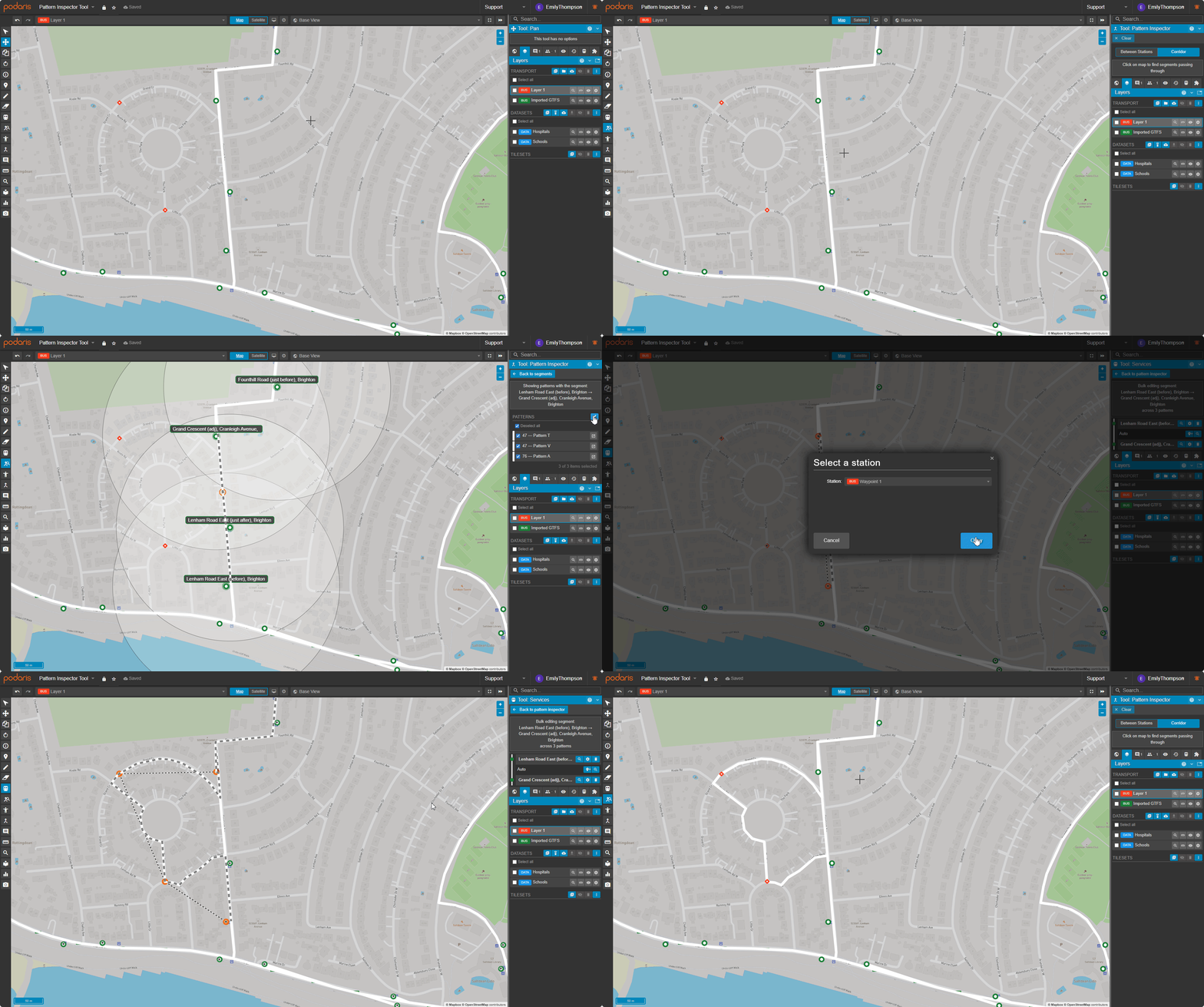
Select the Pattern Inspector Tool from the Tool Bar. The Tool Properties will appear in the top right corner of your screen - Inspect a Segment or Location
You can use the tool to:- Use the "Between Stations" setting- hold down shift on your keyboard and select two stops to see all patterns that connect them
- Use the "Corridor" setting - click over a location on the map to see which patterns pass through that area
- Edit the Segments in Bulk
Once you've identified the affected patterns, you can fix the segments in bulk by:
- Drawing a corrected manual pattern segment for all affected patterns, or adding new stations or waypoints to the segment
- Adding or updating infrastructure (such as bus-only lanes) and switching all the affected patterns to infrastructure routing for the segment that needs fixing
When to Use the Pattern Inspector
The Pattern Inspector is ideal for:
-
Fixing auto-routing errors after importing a network
- Applying the same correction across many services
- Managing diversions and temporary route changes (e.g. road closures or infrastructure updates)