![podaris_logo_png.png]](https://support.podaris.com/hs-fs/hubfs/podaris_logo_png.png?height=50&name=podaris_logo_png.png)
A Network project is a standalone container for a transport network: its routes, stops, and scheduled services. Once created, a Network can be referenced by multiple Plan projects and used as the basis for Podaris:Insight analyses — without needing to duplicate the data in each project.
Use a Network project when you want to maintain a single, authoritative version of a transport network that several people or projects can share.
What a Network project contains
A Network project holds the same services data you would find in the Services panel of a Plan project: routes, stops, timetables, vehicle archetypes, and agencies. The key difference is that a Network project exists independently — it is not tied to any particular piece of infrastructure or map area.
Typical uses include:
- Storing the existing bus or rail network for a study area, so it can be referenced as a baseline in multiple Plan projects
- Holding a proposed network that needs to be tested in several different Insight analyses
- Maintaining a shared authoritative dataset across a team or organisation
Creating a Network project
- On the Podaris home screen, click New and select Network.
- Choose how you want to populate the network:
- Blank: start with an empty network and draw or import services manually
- GTFS File: import an existing GTFS file to populate routes and timetables automatically
- Set your privacy level and starting location, then click Create.
After creation, you will land in the project's Plan view where you can edit services using the Services panel.
Importing network data
Creating a Network from GTFS (Two Methods)
First Method (during Network project set-up from GTFS File):
-
On the home screen, click New and choose GTFS File under Network templates.
-
The asset library opens directly onto the upload panel (Create network from GTFS).
-
Drag your zipped GTFS file onto the dropzone.
-
Work through the agency, date, and schedule settings in the panel, then set your project title, visibility, and destination folder on the draft detail panel before finishing.
From Managed Networks
If you are working with UK bus or rail data, you can import the latest network data directly from BODS, TNDS, or RDG without sourcing a file externally. See Importing Services from Managed Networks for step-by-step guidance.
Referencing a Network from Another Project
Referencing a Network from Another Project
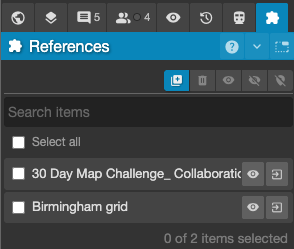
- Open the References panel.
- Click Add reference to open the asset library.
- Search or filter through your available sources (under Mine, All, or by using workspace and owner filters) to find the network project you want to attach.
- Click the project card to view its details on the sidebar and preview its geometry on the map.
- Selecting a View: If the source network contains multiple scenarios or sub-views, click the view selector dropdown above the map preview to choose a specific view rather than the entire project. This is especially useful when you only want to reference a single scenario from a multi-option network.
- Click Add as reference in the bottom right.
Note: Referenced networks arrive in your project as read-only layers that automatically stay in sync whenever the source project is updated.
Using a Network in Podaris:Insight
When creating or configuring a Podaris:Insight analysis, you will be asked to select a network. Network projects appear in this list alongside the services defined within Plan projects, so you can run analyses against a shared network without any duplication.
Things to keep in mind
- A Network project can be referenced by any number of Plan projects simultaneously.
- Editing the Network project updates the data everywhere it is referenced — there is no need to re-attach it.
- Privacy settings on the Network project control who can find and reference it. If you want colleagues in another project to use your network, ensure the privacy is set to at least Organisation or invite them as collaborators.