![podaris_logo_png.png]](https://support.podaris.com/hs-fs/hubfs/podaris_logo_png.png?height=50&name=podaris_logo_png.png)
A Network project is a standalone container for a transport network: its routes, stops, and scheduled services. Once created, a Network can be referenced by multiple Plan projects and used as the basis for Podaris:Insight analyses — without needing to duplicate the data in each project.
Use a Network project when you want to maintain a single, authoritative version of a transport network that several people or projects can share.
What a Network project contains
A Network project holds the same services data you would find in the Services panel of a Plan project: routes, stops, timetables, vehicle archetypes, and agencies. The key difference is that a Network project exists independently — it is not tied to any particular piece of infrastructure or map area.
Typical uses include:
- Storing the existing bus or rail network for a study area, so it can be referenced as a baseline in multiple Plan projects
- Holding a proposed network that needs to be tested in several different Insight analyses
- Maintaining a shared authoritative dataset across a team or organisation
Creating a Network project
- On the Podaris home screen, click New and select Network.
- Choose how you want to populate the network:
- Blank: start with an empty network and draw or import services manually
- GTFS File: import an existing GTFS file to populate routes and timetables automatically
- Set your privacy level and starting location, then click Create.
After creation, you will land in the project's Plan view where you can edit services using the Services panel.
Importing network data
From a GTFS file
Select the GTFS template when creating a new Network project. You will be prompted to upload your GTFS archive straight away. For full details on supported formats, import options, and filtering by agency, date, or geography, see Importing GTFS Feeds.
From Managed Networks
If you are working with UK bus or rail data, you can import the latest network data directly from BODS, TNDS, or RDG without sourcing a file externally. See Importing Services from Managed Networks for step-by-step guidance.
Referencing a Network from a Plan project
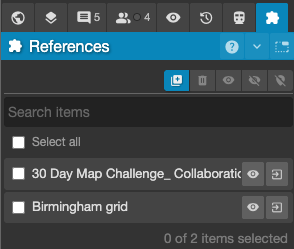
Once a Network project exists, you can attach it to a Plan project via the Networks panel:
1. Open your Plan project and go to the Networks panel in the right-hand sidebar.
2. Click Add reference and search for the Network project you want to attach.
3. The network's routes will appear on your map. You can show or hide individual networks using the visibility controls in the panel.
Referenced networks are read-only within the Plan project — to edit the routes or timetables, open the Network project directly. Changes there are reflected automatically in any Plan project that references it.
Using a Network in Podaris:Insight
When creating or configuring a Podaris:Insight analysis, you will be asked to select a network. Network projects appear in this list alongside the services defined within Plan projects, so you can run analyses against a shared network without any duplication.
Things to keep in mind
- A Network project can be referenced by any number of Plan projects simultaneously.
- Editing the Network project updates the data everywhere it is referenced — there is no need to re-attach it.
- Privacy settings on the Network project control who can find and reference it. If you want colleagues in another project to use your network, ensure the privacy is set to at least Organisation or invite them as collaborators.