![podaris_logo_png.png]](https://support.podaris.com/hs-fs/hubfs/podaris_logo_png.png?height=50&name=podaris_logo_png.png)
What is Podaris:Insight?
Podaris:Insight is a toolkit for simplifying a number of types of accessibility analysis. It is designed to dramatically speed up the process of performing accessibility analysis on networks and datasets created or imported in Podaris. It provides a simple interface through which analysis projects can be created and shared, and the corresponding results exported. You can learn more about Podaris:Insight and the analysis types that it offers here.
What is Difference Catchment Analysis?
Difference Catchment analysis compares the stop catchment of two network scenarios — a baseline and a comparison — in a single analysis. Rather than running two separate Stop Catchment analyses and comparing results manually, Difference Catchment calculates the isochrones for both networks and then produces a spatial breakdown of what has changed:
- Unchanged — areas within catchment for both the baseline and comparison networks
- Baseline only — areas that had catchment coverage in the baseline but lose it in the comparison
- Comparison only — areas that gain catchment coverage in the comparison but were not covered in the baseline
This makes it straightforward to answer questions such as "which communities gain bus access if we extend this route?" or "how does our proposed restructured network affect existing coverage?".
Setting up the analysis
1. Networks to compare
Select a baseline network — the existing or do-nothing scenario — and a comparison network — the proposed or do-something scenario. Both networks can come from any project in your workspace.
Note: Both networks must already exist in Podaris before you run this analysis. If you have a proposed route or network change, create it as a separate network first, then select it as the comparison.
2. Baseline isochrone options
Configure how catchment is calculated for the baseline network. The settings here match the standard Stop Catchment options:
- Mode — the travel mode used to calculate catchment: Walk, Cycle, or Car.
- Step type — whether contours are defined by time or distance.
- Duration/distance contours — up to 10 concentric isochrone bands (e.g. 10 minutes and 20 minutes, or 400 m and 800 m).
- Road network — whether routing follows the street network or uses straight-line (crow flies) distances.
- Station filtering — when enabled, only stations meeting a minimum frequency (vehicles per hour), operating on a specified day, and within a specified time window are included in the catchment calculation.
3. Comparison isochrone options
By default, the comparison network uses the same isochrone settings as the baseline. If you need to compare like-for-like (e.g. the same walking threshold for both scenarios), leave Use same settings as baseline? set to Yes.
Set it to No if you need the comparison to use a different travel mode or road network setting. Note that step type and contour values are always shared between baseline and comparison.
4. Dataset queries
Datasets and their associated queries can be attached to quantify the change in accessibility. For example, connecting a population dataset lets you see how many additional (or fewer) residents fall within catchment in the comparison scenario. Up to 5 datasets and 10 queries can be added.
Interpreting results
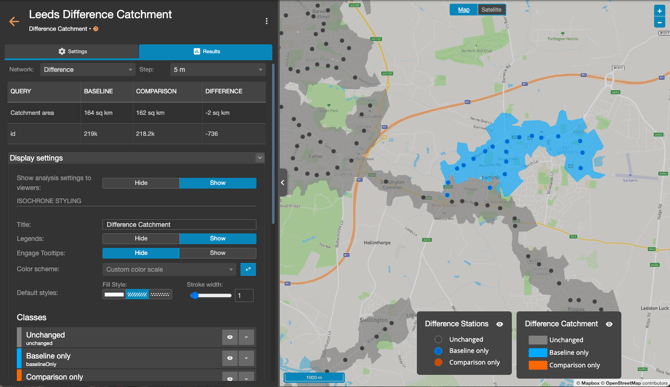
Once the analysis has run, the results panel contains a Network dropdown with three options: Baseline, Comparison, and Difference.
Baseline and Comparison modes
These modes display each scenario's catchment exactly as it would appear in a standalone Stop Catchment analysis — isochrone polygons coloured by contour band, stations coloured by vehicles per hour (VPH), and any dataset query results. Use these to review each scenario independently before examining the difference.
Difference mode
Difference mode shows the spatial comparison between the two scenarios. If you defined more than one contour step, a Step dropdown appears so you can examine the difference at each individual contour.
The map displays three categories:
| Colour | Category | Meaning |
|---|---|---|
| Grey | Unchanged | Within catchment for both scenarios |
| Blue | Baseline only | Had coverage in baseline; loses it in comparison |
| Orange | Comparison only | Gains coverage in comparison; not in baseline |
Below the map, a table shows the Baseline value, Comparison value, and Difference (comparison minus baseline) for catchment area and for each dataset query you configured, for the selected step.
Styling the results
In the display settings panel, isochrone and station styling can be adjusted independently for each mode:
- In Baseline and Comparison modes, the isochrone colour scheme and station VPH classes can be customised using the same controls as Stop Catchment.
- In Difference mode, separate styling controls are provided for the difference isochrone layer and the difference stations layer. The default three-category colours (grey, blue, orange) can be changed here, though the category labels and steps are fixed.
Exporting results
Your analyses can be exported by clicking the project name and selecting Export Analyse. Difference Catchment provides two export formats:
- GIS (GeoJSON) — a single GeoJSON file containing the baseline catchment polygons, comparison catchment polygons, and difference polygons, each tagged with a
scenarioproperty (baseline,comparison, ordifference) for easy filtering in GIS software. - CSV — a table with one row per contour step and metric, showing the Baseline value, Comparison value, and Difference for catchment area and each dataset query.
Tip: If you only need to examine catchment for a single network without comparing two scenarios, use the Stop Catchment analysis instead — it is simpler to set up and produces the same isochrone outputs for a single network.