![podaris_logo_png.png]](https://support.podaris.com/hs-fs/hubfs/podaris_logo_png.png?height=50&name=podaris_logo_png.png)
Route Preview answers the question every street edit raises: did that actually work? Place a start and an end, and it routes the journey by car, bus, cycle and on foot against the built network, so you can see whether a modal filter really sends traffic the long way round or whether a banned turn is being obeyed.
It is the verification half of the editing loop. Edit, preview, rebuild, preview again.
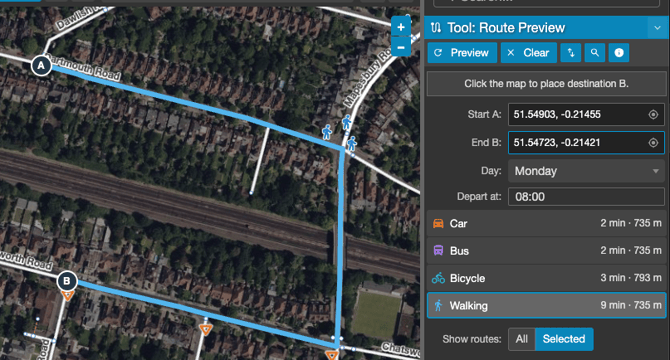
Running a preview
- Select Route Preview from the toolbar.
- Click Start A, then click the point on the map where the journey begins. The panel prompts you with "Click the map to place start A."
- Click End B and place the destination.
- Set the Day and Depart at time.
- Click Preview.
Each mode is listed with its journey metrics. Select a mode to highlight its route on the map. Reverse journey swaps the two points, which matters on a one-way network where the return leg is not the mirror of the outbound. Fit journey zooms the map to the result, and Clear removes the preview.
Reading the result
Four modes are always routed: car, bus, cycle and walk. Comparing them is usually the point, since an intervention that closes a street to motor traffic should change the car and bus rows while leaving cycle and walk alone.
Three things about how routes are drawn and costed are worth knowing:
- Dashed ends show where the journey snapped from your clicked point to the nearest street the mode can legally use. A long dashed tail usually means you clicked somewhere that mode cannot reach.
- Bus uses road access, not timetables. It routes a bus-shaped vehicle over the streets, honouring bus gates and bus lanes. It is not a journey plan and takes no account of services or frequencies.
- Departure uses the network's local time, not your own timezone.
A mode that cannot complete the journey reports its own error rather than failing the whole preview, so a route that is possible on foot but impossible by car still gives you three useful rows and one explanation.
Checking a timed intervention
Because the preview takes a day and a departure time, it is the quickest way to confirm a timed restriction behaves as intended. Set the time inside a school street's closure window and preview by car, then set it outside the window and preview again. If the two routes are identical, the restriction is not doing what you think.
The same applies to timed turn restrictions and bus gates with time conditions.
Tip: Preview before you edit as well as after. A baseline journey gives you something to compare against, and it is the fastest way to find out whether the route you expected to change was ever using that street in the first place.
Pending edits and rebuilding
Route Preview routes on the built network, so unpublished edits are not included. If you have pending changes the panel says so: "Pending edits are excluded until rebuilt."
Rather than sending you elsewhere, it offers Rebuild & recheck. That publishes your pending changes and re-runs the preview against the new network. Once it completes, the panel marks the results as Changes from before this rebuild and shows a per-mode difference, so you can see exactly what your edits did to each journey.