![podaris_logo_png.png]](https://support.podaris.com/hs-fs/hubfs/podaris_logo_png.png?height=50&name=podaris_logo_png.png)
Edits you make with the street editor do not affect routing until you publish them by rebuilding the network. Each rebuild produces a version: a fixed state of the network you can return to, compare against, or branch from.
The Versions panel is where that happens. It is the panel a Streets project opens on.
Versions, views and scenarios
There are three terms to understand:
- A version is a published state of the network. It does not change once built.
- A view points at one version. Switching view switches the network you are looking at and editing. A view also saves display settings, such as the base map type and zoom level.
- A scenario is what a view represents in planning terms: your do-nothing case, or option B.
When you first open a street network, you will see your initial network as a Base View. You can then create versions and views from them when you make changes to your street network.
Rebuilding your network to update a view
While you have unpublished edits, the panel lists them by type: added, modified, deleted, restrictions and splits. Two actions sit below the list:
-
Rebuild Network publishes the pending changes, and has two modes.
-
Discard all throws them away: you are asked to confirm and told how many changes will go, and this one cannot be undone.
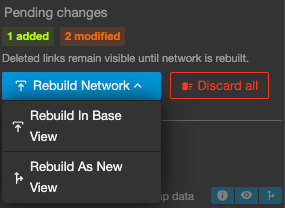
Rebuild Network is a dropdown with two choices.
| Choice | What happens |
| Rebuild in this view | Publishes the edits and moves the current view forward onto the new version. Use this when refining one scenario. |
| Rebuild as new view | Asks for a name, publishes the edits into a new view, and leaves the view you were in untouched. Use this when the edits are an option rather than a correction. |
Rebuild as new view is the usual way to create a scenario: start from your baseline, make the changes, and publish them as "Option B" without disturbing the baseline. The new view inherits the viewport, layers, basemap and display settings of the one you were in, and your pending edits move across with it.
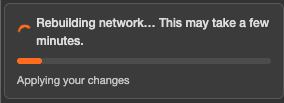
Rebuilding takes a few minutes. The panel shows a progress bar and names the current stage, and you are notified when it finishes. You can leave the project while it runs. If a rebuild fails your pending changes are kept, and the panel offers Retry.
Caution: If a rebuild reports that some edits refer to roads that no longer exist in the underlying network, those edits are stale, which happens when the base network has moved on beneath a long-lived set of pending changes. Discard them or make them again against the current network, then rebuild.
Reading the History graph
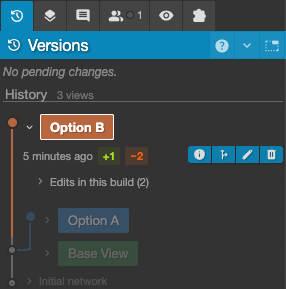
Below the pending changes, History draws every published version as a branching graph. Time runs down the panel, most recent first, and each vertical line is a branch.
- A dot is one published version.
- A coloured chip carrying a view's name marks where that view currently sits. Each view has its own colour, carried down its line.
- A line splitting in two is a fork: where one scenario diverged from another.
- Runs of versions with nothing notable between them collapse into a single "N versions" row. Click to expand.
Click any version to open it. You get its timestamp, its change counts, and What changed, listing the individual edits in that build with who made each one and when. Where a view forked, a second list shows what has happened on that branch since.
The oldest entry is always the initial network, the state as first extracted or uploaded.
What you can do with a version
- Click on the name to view it. This switches your view if you clicked a view badge.
- Network information
 opens the metadata for that build: routable links, routing nodes, coverage bounds, elevation coverage and artifact size.
 - New view from this version
 forks a scenario from that point. Name it and Podaris switches you into it.
 - Rename view
 and Delete view
  act on a branch head.
To switch between scenarios, click the coloured chip of the view you want.
Tip: If you rebuild while previewing an older version, the only option offered is Rebuild as new view, and the new branch starts from the version you were looking at. That is the quickest way to go back to how the network was in March and try something different.
Deleting a scenario
Deleting a view removes the scenario and hides the versions only that branch used. Shared history is kept: any version another view still relies on, including everything before the fork, stays in the graph. You are warned before this happens, and a project must always keep at least one public view.
Safeguards
A few actions are blocked so edits cannot be silently lost or applied to the wrong network.
- You cannot switch view, or preview another version, while you have unpublished edits. Rebuild them or discard them first.
- You cannot delete a view with unpublished edits, or one whose network is rebuilding.
- Two rebuilds cannot run on the same branch at once.
- A failed rebuild keeps your pending changes rather than dropping them.
Comparing two scenarios
The Compare tool shows every difference between two views on the map, grouped into added, retagged and removed links and junctions. See Compare Tool.
Duplicating a street network
A Streets project can be duplicated from the home screen like any other project. The copy is independently editable and carries its built network with it, so it is the right move when you want to branch work off for a different study rather than add a scenario to the same project. Keep scenarios as views inside one project; use a duplicate when the work is genuinely separate.
Exporting a network
The published network of the view you are in can be exported from the project export window.
| Format | Notes |
| OSM PBF | The full network including every edit in this scenario, in the standard OpenStreetMap binary format. |
| Street network GeoJSON | One line feature per link with all its properties. Opens in QGIS, ArcGIS and most GIS tools. Large networks take a minute to convert. |
| Street network GeoParquet | Compact, for QGIS, DuckDB, GeoPandas and modern GIS pipelines. |
The GIS exports need the network to have been published at least once. If no features are found, rebuild the network and try again.
If something looks broken
Occasionally the map display or query data needs rebuilding without any change to the network. Regenerate Tiles, on the Setup Streets page in Project Settings, does that. It is only available when there are no pending changes: if you have edits waiting, rebuilding the network covers it. Contact us if you need further support.