![podaris_logo_png.png]](https://support.podaris.com/hs-fs/hubfs/podaris_logo_png.png?height=50&name=podaris_logo_png.png)
A workspace is a shared area on the Podaris homepage that brings together all the projects, networks, datasets, and other assets for a particular team or programme of work. Instead of everyone's assets appearing in one undifferentiated list, workspaces give you a focused, access-controlled view that's separate from your personal projects.
What a workspace contains
Workspaces hold any combination of Podaris assets:
- Plan projects
- Networks
- Datasets
- Streets
- Tilesets
- Insight analyses
- Folders — for grouping assets within the workspace
Everything inside a workspace is visible only to its members (or to all organisation members, if the workspace visibility is set to Organisation — see Workspace visibility below).
Switching between workspaces
The workspace selector sits at the top of the homepage, just above the project list. Click the dropdown to see a list of all workspaces you are a member of (or that are open to the whole organisation). Select one to switch to it — the project list updates immediately to show only the assets in that workspace.
To return to your unfiltered homepage, click the × inside the workspace selector.
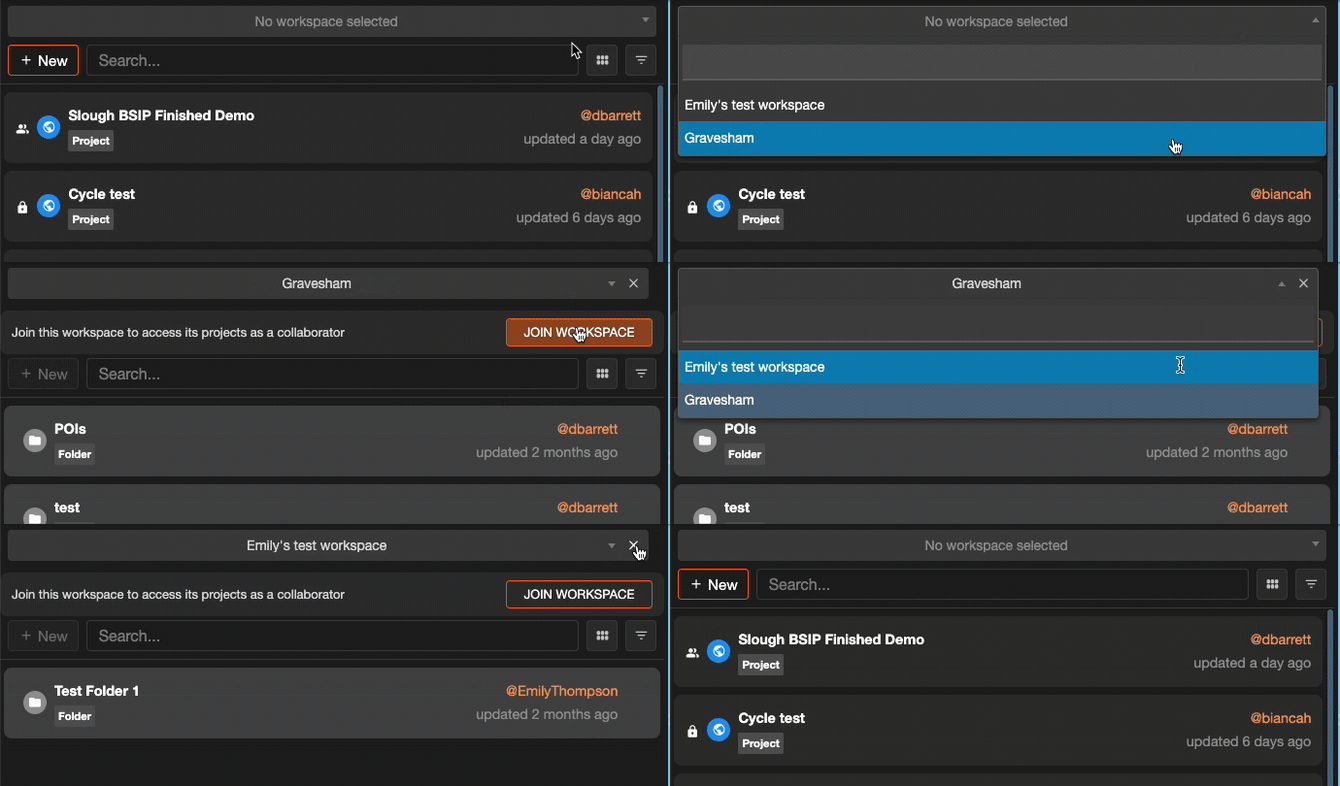
Joining a workspace
If a workspace's visibility is set to Organisation, anyone in your organisation can join it without an invitation. Select the workspace from the dropdown and you'll see a prompt to Join this workspace to access its projects as a collaborator — click Join workspace to become a member. If more than one role is available to you, you'll be asked to choose one (the roles you can pick are limited by your organisation role).
Private workspaces don't show this prompt — you can only access them after a workspace admin adds you (see Managing members below).
Creating a workspace
Only organisation members with Admin or Owner role can create workspaces.
- On the homepage, make sure no workspace is selected (use the × in the selector to close one if needed).
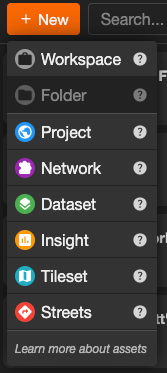
- Open the New (Create) menu and choose Workspace. If you don't have permission to create workspaces, this option appears greyed out.
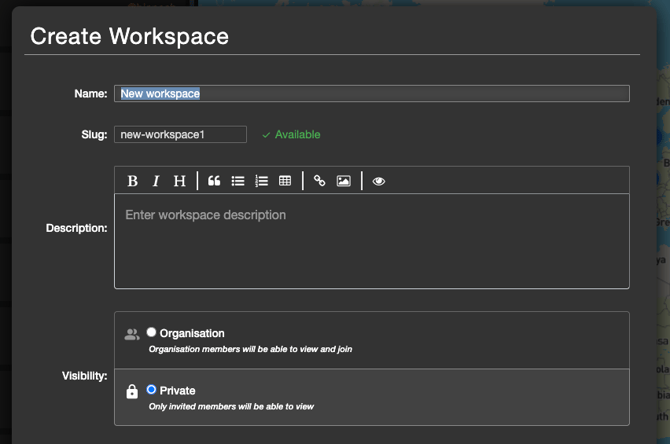
- In the Create Workspace dialog, enter a Name. A URL-friendly slug is generated automatically — you can customise it if needed.
- Optionally add a Description (Markdown is supported).
- Choose a Visibility setting (see below).
- Click Create.
You are added as the workspace's admin automatically.
Workspace visibility
When creating or editing a workspace, you choose one of two visibility options:
| Visibility | Who can see the workspace |
|---|---|
| Organisation | All organisation members can discover and join the workspace. They see it in the workspace dropdown and can self-join (subject to their organisation role). |
| Private |
Only explicitly invited members can see and access the workspace. It does not appear in the dropdown for anyone who hasn't been added. |
Tip: Choose Organisation visibility for shared, team-wide areas you want colleagues to find and join on their own. Choose Private for sensitive or tightly scoped work where you want to control exactly who has access.
Workspace roles
Members of a workspace hold one of three roles. These control what they can do inside the workspace:
| Role | Can view assets | Can create and edit assets | Can manage settings and members |
|---|---|---|---|
| View | Yes | No | No |
| Edit | Yes | Yes | No |
| Admin | Yes | Yes | Yes |
A workspace must always have at least one admin — you cannot change the last admin's role or remove them.
Note: A workspace must always have at least one admin. You cannot change the last admin's role or remove them until another member has been made an admin.
Managing members
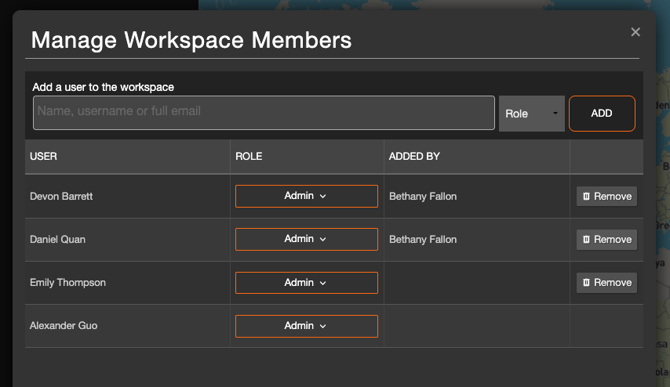
Workspace admins can add, change, and remove members from the Manage Workspace Members dialog. To open it, select the workspace, then click the people icon in the workspace toolbar.
To add a member:
- Type a name or email address into the search box.
- You can enter an email address that doesn't yet have a Podaris account — they will receive an invitation to join.
- Select a role from the dropdown.
- Click Add.
To change a member's role: use the role dropdown in the members table.
To remove a member: click Remove next to their name. You cannot remove yourself if you are the last admin.
Editing workspace settings
Workspace admins can rename the workspace, update its description, change its slug, or switch its visibility at any time. Select the workspace, then click the settings (gear) icon in the workspace toolbar to open the workspace settings.
Things to keep in mind
- Projects created inside a workspace are private to workspace members by default — they do not appear in the general homepage list for people outside the workspace. See Project Visibility Settings for more detail.
- You can move a project into or out of a workspace from the project's action menu, or by dragging and dropping it when inside a workspace. See Folders for how to organise assets within a workspace.
- Your last-used workspace is remembered between sessions — the homepage reopens in the same workspace when you next sign in.
- Only organisation members with Admin or Owner role can create new workspaces. Contact your organisation owner if you need a workspace created.
- Deleting a workspace isn't something you can do yourself from the homepage or workspace settings. Once the workspace is empty, contact the Podaris team and we'll remove it for you.
- For organisation-wide user and access management, see Managing Your Organisation.
- The asset library has a workspace filter.