![podaris_logo_png.png]](https://support.podaris.com/hs-fs/hubfs/podaris_logo_png.png?height=50&name=podaris_logo_png.png)
After filtering by date, the final stage of the network import process allows you to fine-tune how Podaris processes and represents your transit data. You can choose from preset configurations or customise advanced settings to best suit your project needs.
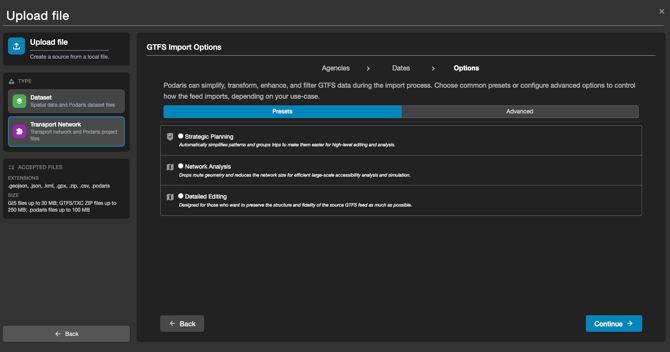
Preset Configurations
Selecting a preset will automatically configure the options available in the "Advanced" tab. While the presets are typically suitable for most scenarios, if you wish to understand the specific adjustments being made or customize your import settings further, you can start by choosing a preset and then navigate to the "Advanced" tab for additional modifications.
Strategic Planning
This is designed for high-level transit planning and analysis. It simplifies route patterns and groups trips to facilitate easier editing and strategic decision-making. Use this preset when you're focused on overall network design, service frequency analysis, or long-term planning scenarios. It reduces the complexity of the imported data, making it more manageable for conceptual work and broad assessments.
Network Analysis
Optimized for efficient large-scale accessibility analysis and simulation, this preset drops detailed route geometry and reduces the overall network size. It's ideal for projects requiring extensive computational analysis, such as citywide accessibility studies or multi-modal network simulations. This configuration prioritizes performance and scalability over granular route details.
Detailed Editing
This preset preserves as much of the original GTFS feed structure and fidelity as possible. It's best suited for projects that require precise editing of existing routes or when you need to maintain a close representation of the current transit system. Use this when working on detailed schedule adjustments, specific route modifications, or when you need to preserve all nuances of the original data.
Advanced Options
For users who need more control over the import process, the Advanced tab allows customisation of specific import parameters.
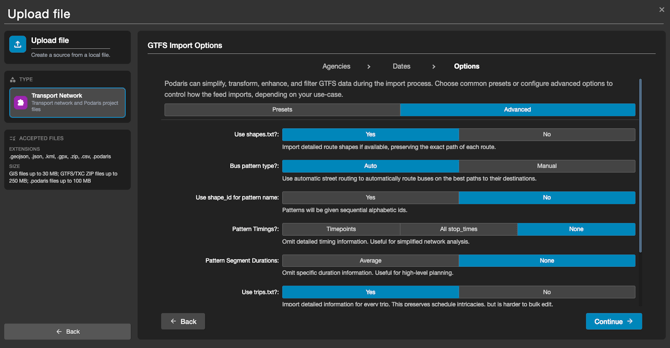
Route Patterns
- Use shapes.txt - the path along which your vehicle will travel. Described as 'patterns' in Podaris. See the GTFS shapes.txt specification.
- Yes - This gives you the option to create missing shapes. This is disabled by default and is a manual process that we can assist with if needed.
- No - This assumes the bus pattern type will be used and allows you specify if the pattern is:
- Auto - that it follows existing road infrastructure
- Manual - that it follows hand-drawn infrastructure within Podaris
Route Trips
- Use trips.txt
- Use frequencies.txt
- Trips without frequencies.txt
- Skip
- Create exact trip - for rows in trips.txt that do not have a frequency.txt mapped to them, this option will cause Podaris to create trips on the route that have the exact departure times of each trip.
See next: Filtering Network Imports by Geography
Finishing the network import
For further details about how GTFS data is handled by Podaris, please see GTFS Data Import Pipeline.