![podaris_logo_png.png]](https://support.podaris.com/hs-fs/hubfs/podaris_logo_png.png?height=50&name=podaris_logo_png.png)
Street Draw adds links that do not exist yet: a proposed footbridge, a new cycleway, a link road, a busway. It is the tool behind many "what if we built this?" questions.
Press D or click the Street Draw tool. Everything you draw becomes a pending change and does not affect routing until you rebuild the network.
Choose how the link gets its attributes
There are two ways to give attributes to your new links:
- Custom gives you the attribute editor to complete yourself. The fields are the same ones the Select tool uses, including the presets, meaning that any new link you draw will have the same attributes you manually set once.
- Copy from link takes the attributes from a link that already exists. Use it when what you are drawing is much like something already on the map.
Custom is the default, and you can switch between the two at any point before you finish a link.
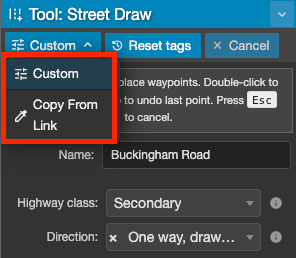
Copying from an existing link
- Click Copy from link. The attribute fields are replaced by Click a link to copy its tags.
- Move over the map. Links highlight as you pass them.
- Click the one you want.
The panel then names the link you copied from and fills in with its values, which stay fully editable. Built links show their OpenStreetMap id so you can check the source; links Podaris created show a plain link number. To copy from a different one, click the ✕ next to the name and pick again. Links you drew earlier in the session can be copied from too.
Nearly every tag comes across, and you can see the full list under All tags. Three things are worth knowing:
- Copying takes the link as it stands now, including changes you have staged but not yet rebuilt.
- One-way is applied in the direction you draw, so draw the link the way the traffic goes.
- The name comes across as well. Clear it unless the new link really is part of the same street.
Editing any field, or applying a preset, switches the panel back to Custom and stops naming the source. Your values are kept. To start again from the original, click Copy from link and sample it a second time.
Reset tags allows you to quickly clears all custom attributes and copied tags, giving you a clean slate for the next link you draw.
Drawing the link
- Click on the map to place each point. The panel counts them as you go.
- Double-click to finish.
Backspace removes the last point and Esc cancels the whole link.
Connecting to existing streets
Start or end a link on an existing road and Podaris snaps to it, creating a real junction. Snapping works on junctions, on the ends of links, and anywhere along a link.
Snapping affects geometry only, and leaves your attributes exactly as you set them. If you want the attributes of the road you are joining, copy from it first.
After you have drawn
Your settings are sticky. Every link uses the same attributes until you change them, including any you copied, and they survive switching tools and coming back. Drawing ten cycleways means setting Cycleway once.
A new link is marked New link when you select it, and every property remains editable. Switch to the Select tool to change it or to reshape it. To get rid of one, click it with the Street Erase tool; because it was never built, it is discarded outright rather than queued for deletion. Junctions created by your drawing are pending too, and only become fully editable after the network is rebuilt.
Messages you may see
| Message | What to do |
| A new street needs a highway class. | Choose one in the panel before drawing, or copy from a link that has one. |
| Click a link to copy its tags. | You are in Copy from link mode. Click a link, or click Custom to set the attributes yourself. |
| Overlapping links that do not share a node (a warning in the alert manager) | Your new link crosses an existing one without connecting. Either snap it, or add a bridge or tunnel tag if they genuinely pass at different levels. |
| Very short links, under 2 m (a warning in the alert manager) | Usually an accidental double-click. Delete the stub, as very short links can make routing unstable. |