![podaris_logo_png.png]](https://support.podaris.com/hs-fs/hubfs/podaris_logo_png.png?height=50&name=podaris_logo_png.png)
Podaris:Plan is where you design transport infrastructure, schedule services, and analyse the performance of your proposals — all on an interactive map. It complements Podaris:Insight (for pre-built accessibility analyses) and Podaris:Engage (for stakeholder engagement). This article gives you a quick tour of the interface.
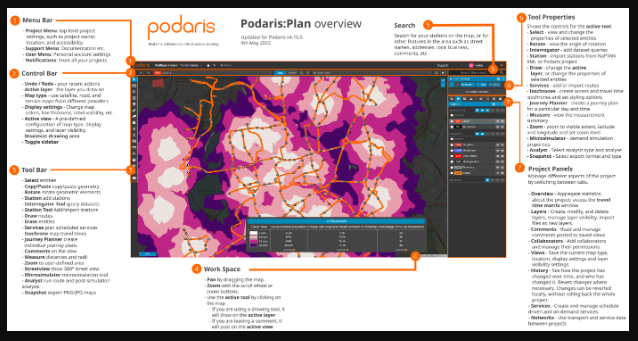
User Interface Overview (click to enlarge)
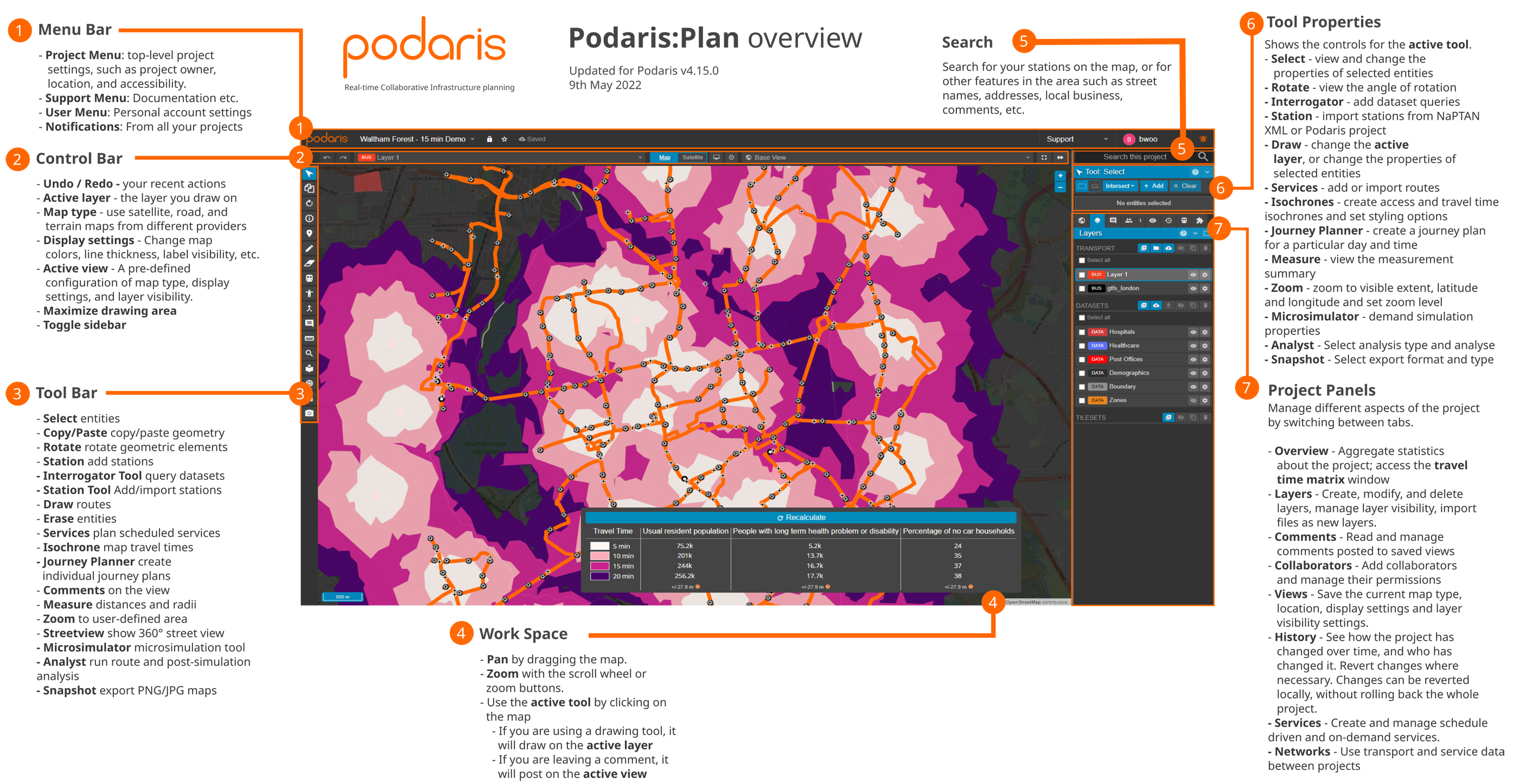
The interface at a glance
The Plan workspace is organised into five main zones:
| Zone | Where | What it does |
| Menu Bar | Top | Project settings, support, your account, and notifications |
| Control Bar | Below menu | Undo/redo, map type, display settings, active view, and sidebar toggle |
| Tool Bar | Left side | All drawing and analysis tools |
| Work Space | Centre | The interactive map: pan by dragging, zoom with the scroll wheel or trackpad scroll |
| Search | Top right | Search for stations, street names, addresses, and comments |
| Tool Properties | Right panel, top | Settings for whichever tool is currently active |
| Project Panels | Right panel, bottom | Layers, services, collaborators, history, and more |
Menu Bar
The Menu Bar sits at the very top of the screen. It contains:
- Project Menu: top-level project settings including owner, location, accessibility defaults, and units
- Support Menu: links to documentation and support resources
- User Menu: your personal account settings and preferences
- Notifications: alerts for completed imports, analysis runs, and collaborator activity
Control Bar
The Control Bar sits just below the Menu Bar and contains controls that apply across the whole map view:
- Undo / Redo: step backwards or forwards through your recent changes
- Active Layer: the layer that drawing tools will act on
- Map Type: switch between satellite, road, and terrain base maps
- Display Settings: adjust colours, line thickness, and label visibility
- Active View: switch between saved views of your project
- Maximise Drawing Area: collapse the sidebar to expand the map
- Toggle Sidebar: show or hide the right-hand panel
Tool Bar
The Tool Bar runs down the left side of the workspace. Tools include:
Selection and editing
Select, Copy/Paste, Rotate, Erase
Infrastructure drawing
Station, Draw — place stations and draw alignment segments for any supported transport mode
Analysis and exploration
Interrogator, Isochrone, Journey Planner, Measure, Microsimulator, Analyst, Snapshot
Other
Services, Comments, Zoom, Streetview
Click any tool to activate it; its settings will appear in the Tool Properties panel on the right.
Project Panels
The lower portion of the right-hand panel contains the Project Panels. Use the panel tabs to switch between:
| Panel | What it contains |
| Overview |
Aggregate project statistics and a travel time matrix
|
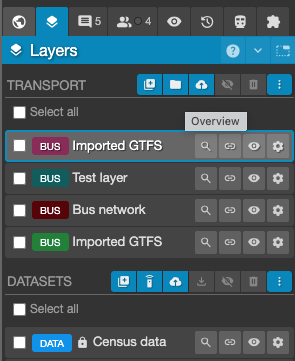
| Layers |
Create, modify, and delete infrastructure and dataset layers; control visibility; import files
|
| Comments |
View, add, and reply to comments anchored to specific views
|
| Collaborators |
Invite and manage collaborators; set permissions
|
| Views |
Save and restore map location, display settings, and layer visibility as named views
|
| History |
Browse the full change log; revert to any earlier state
|
| Services |
Define schedule-driven and on-demand services on your routes
|
| Networks |
Reference external Network projects — display their routes on your map and include them in analyse
|
Supported transport modes
Podaris:Plan supports parametric modelling of the following modes:
- Bus
- Cycle Paths
- Hyperloop
- Metro Rail
- PRT (Personal Rapid Transit)
- Rail
- Tram
Each mode generates the correct curve radii, station footprints, velocities, and operational parameters automatically.
Things to keep in mind
- Podaris:Plan supports real-time collaborative editing — multiple team members can work on the same project simultaneously. Changes made by others appear on your screen as they happen.
- All edits are tracked in the History panel, so nothing is ever permanently lost. You can roll back changes selectively without affecting the rest of the project. See [Understanding Revision Control](https://support.podaris.com/understanding-revision).
- Projects open in the base view by default, which shows all layers at full extent. Use Views to save and share focused scenarios.